

[Panasonic] Apple Phone Wired Upload
A data cable connection is the simplest, most stable, and most efficient connection method. Using an Apple dedicated OTG data cable/adapter cable that supports data transmission to connect an iPhone and a camera allows you to quickly upload photos from the camera to the UPHOTO cloud.
I. Phone Settings
- System requirements: Supports iOS 15 and above.
- Cable requirements: Must use an Apple dedicated OTG data cable/adapter cable that supports data transmission; the original Apple charging cable generally does not support data transmission for this scenario.
- If you need to purchase cables, you can buy them in the "Purchase Service" section of the UPHOTO official website (www.uphoto.cc) or the WeChat Mini Program (I am a photographer).
II. Camera Settings
- Set the camera power to the maximum time to keep the camera always on.
- Set the photo format to JPG/JPEG (Apple wired transmission usually only supports JPG/JPEG).
- Set the camera date and time to the current date and time (recommended to align with local time).
- Check external connection/network settings, turn off communication functions such as Bluetooth, Wi-Fi, FTP transmission, etc. (ignore if there are no related settings).
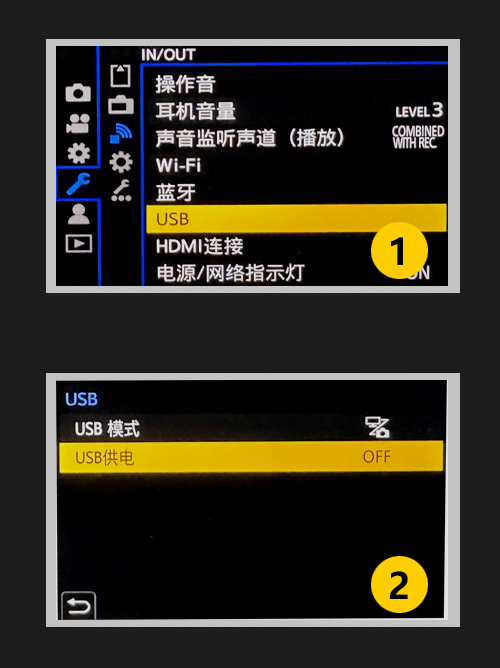
- Turn off "USB Power Supply". As shown below:
- Set upload mode.
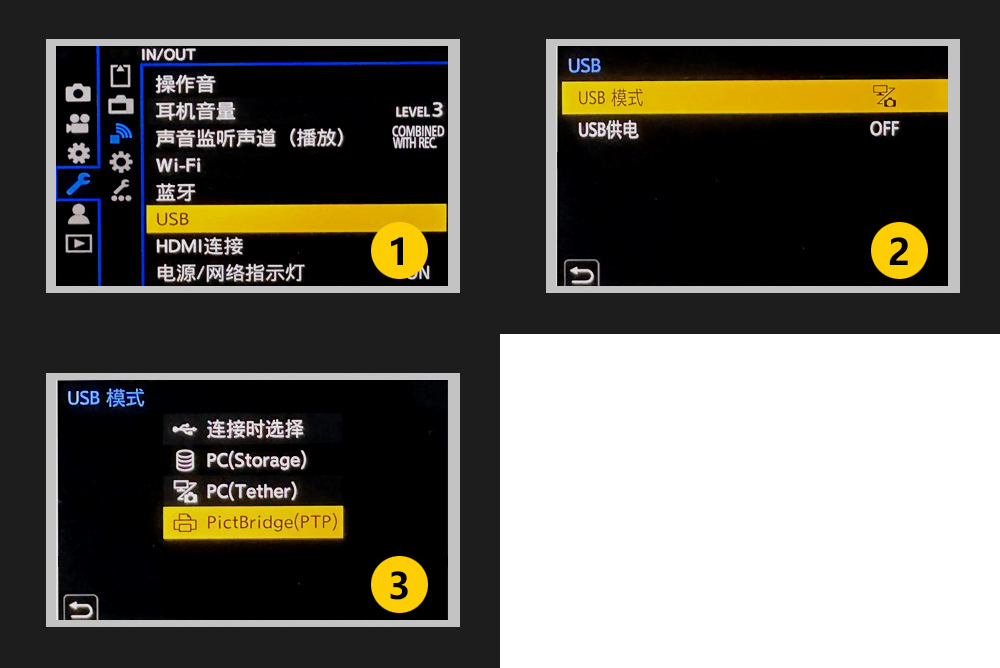
1) Set to "Manual Upload" mode
"Manual Upload" mode: When the camera is disconnected from the phone, take some photos (such as dozens), and then connect the camera and the phone to import the photos from the camera to the phone through the "UPHOTO Live APP".
- In this mode, only all image data in card slot 1 is read.
- This mode reads all image data in card slot 1 by default. It is recommended to insert only 1 memory card and put it in card slot 1.
Set "USB Mode" to "PictBridge(PTP)" mode, turn off USB power supply, click the return button, and then connect. As shown below:
2) Set to "Shoot and Transfer" mode
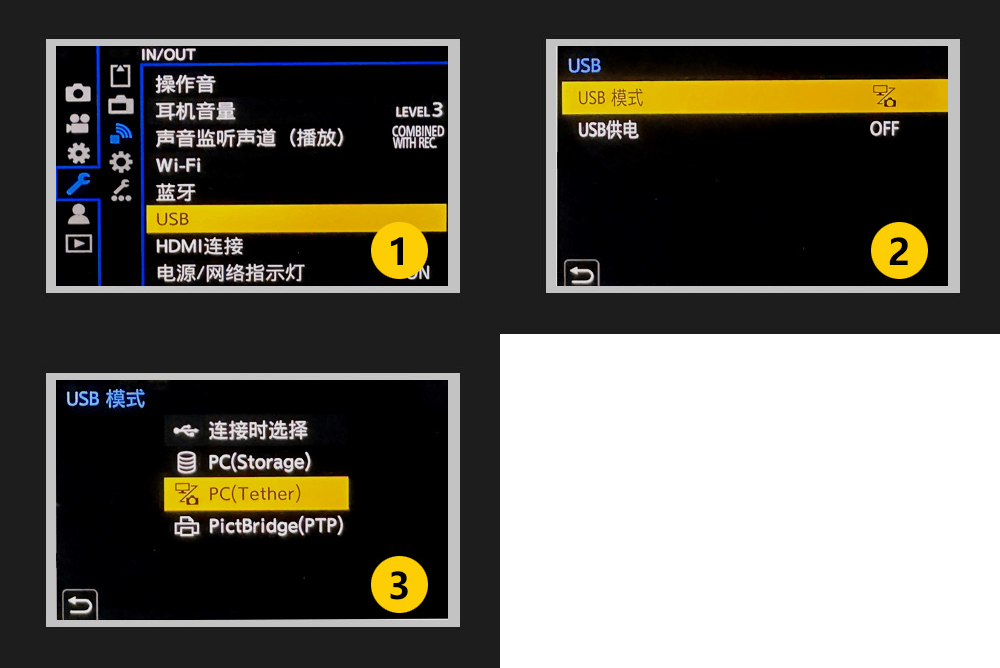
"Shoot and Transfer" mode: When the camera and phone are connected, after the camera takes a photo, the photo in the camera is automatically imported into the phone through the "UPHOTO Live APP".
Set "USB Mode" to "PC(Tether)" mode, turn off USB power supply, click the return button, and then connect. As shown below:
III. Connect Phone to Camera
Connect the camera and iPhone with the data cable.
Note: Some iOS versions or Lightning interface models may have recognition delays. You can try to unplug and reconnect: wait about 30 seconds after each unplugging, then plug it in and wait about 30 seconds.
IV. Shoot and Upload
- Open the "UPHOTO Live APP" and log in successfully.
- In the APP album list, select the album you want to shoot, click "Upload Now", and select "Wired Transmission".
- Follow the prompts to select the upload group, upload size, and upload mode (manual upload/shoot and transfer), and enter the "Shoot and Upload" page.
- Complete the authorization according to the system prompts (such as accessing USB devices/photos, etc.). As shown below:
- If you accidentally click reject, you can unplug the data cable on the phone side and plug it in again, and then authorize according to the prompts.
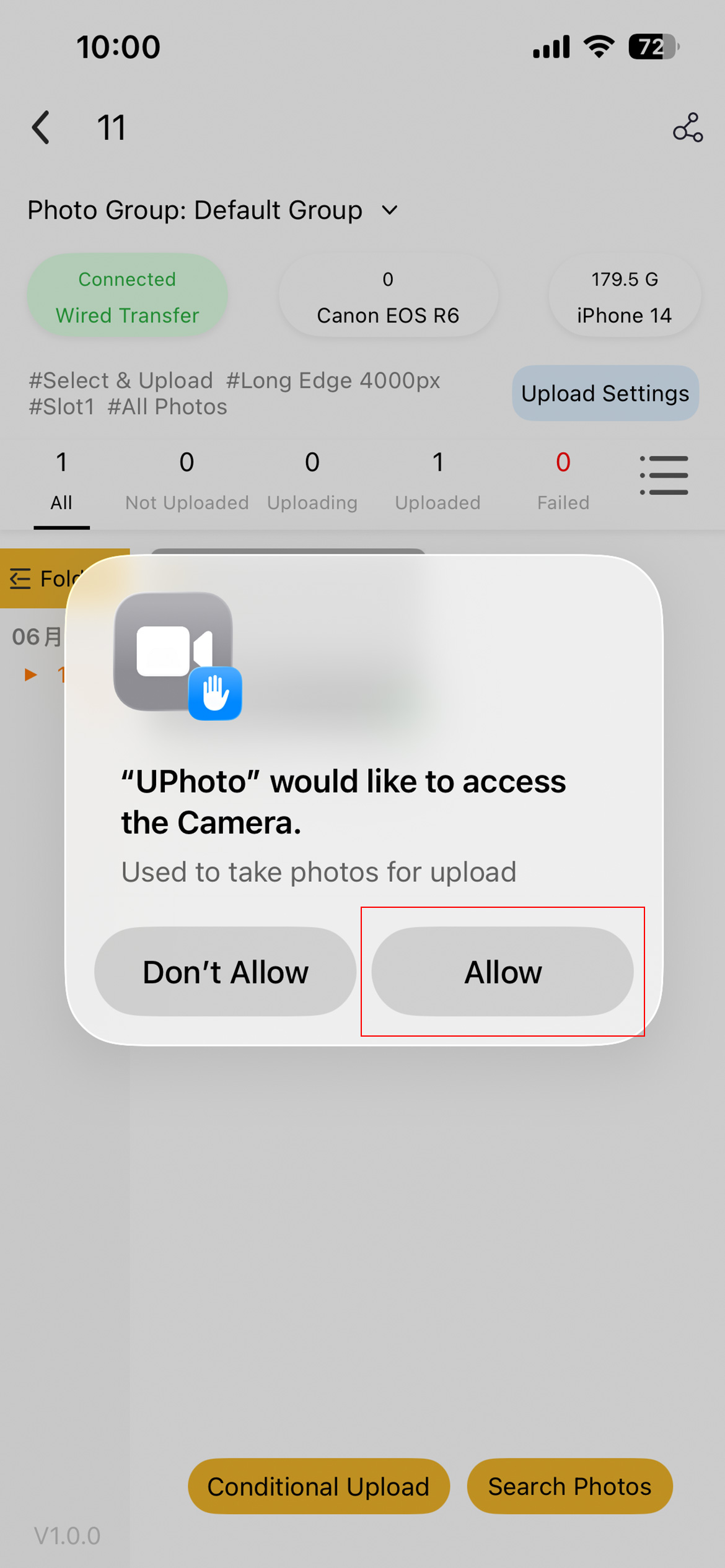
- When the upper left corner of the page shows a green "Camera Connected", it means the connection is successful and you can start uploading.
Note: If the page prompts disconnected, please first confirm that the upload mode matches the camera USB mode (point-and-select upload = PTP; shoot and transfer = PC(Tether)), and make sure that the USB power supply has been turned off.
Common Issues and Solutions
- Cannot connect to the camera (no response after repeated plugging and unplugging).
- Confirm that the iPhone system version meets the requirements (iOS 15+).
- Confirm that you are using an Apple dedicated OTG cable/adapter cable that supports data transmission, and replace the cable and try again if necessary.
- When the authorization pop-up appears, only allow "UPHOTO Live" to access, and complete the relevant permissions for photos, files, and folders in the system settings.
- Confirm that the UPHOTO Live APP is the latest version (try again after updating in the App Store).
- In point-and-select upload mode, the camera USB mode must be "PTP"; in shoot and transfer mode, it must be "PC(Tether)", and both must have the USB power supply turned off before connecting.
- If you have upgraded to iOS 18.1, it is recommended to check whether the "Files and Folders" permission has been turned on.
- You can try to "Reset/Restore Factory Settings" in the camera settings, and then reconnect.
- The connection is successful but photos cannot be recognized/transferred.
- Confirm that the photo is saved in card slot 1 (it is recommended to insert only 1 card and place it in card slot 1).
- Confirm that the photo is saved in JPG/JPEG format (switch JPEG/HEIF to JPEG).
- In point-and-select upload mode, confirm that the USB mode is "PTP".
- In shoot and transfer mode, confirm that the USB mode is "PC(Tether)" and the USB power supply has been turned off.