

[Sony] Android Phone FTP Wireless Upload
Connect your camera to your phone's personal hotspot, and use the camera's FTP function to transfer photos from the camera to the UPHOTO cloud.
Supported cameras: Sony cameras with WIFI and FTP functions
TIP
FTP wireless upload can only upload photos taken after the connection. If you need to upload historical photos, please refer to the "Common Issues and Solutions" section in the bottom of this page.
I. Phone Settings
Turn off your phone's WIFI
- Steps to turn off: Go to Phone Settings -> WLAN or Wireless LAN
Turn on your phone's mobile network personal hotspot
- Steps to turn on: Go to Phone Settings -> Mobile Network or Cellular Network -> Personal Hotspot
- For some phones: Go to Phone Settings -> Personal Hotspot
- You can also directly search for "Personal Hotspot" in "Settings"
Note: The name and password of the personal hotspot must use simple letters and numbers, and should not contain "spaces" and "special characters". You can set the "AP Band" of the personal hotspot to the "5GHz band", which makes photo importing faster (some cameras do not support the 5GHz band, which will cause the phone's personal hotspot network to not be found).
Set the phone to be available after the screen is off.
- Please refer to Android Settings for Shooting with Screen Off to set up according to your phone brand.
II. Obtain FTP Service Information
Open the "UPHOTO Live APP" and log in successfully.
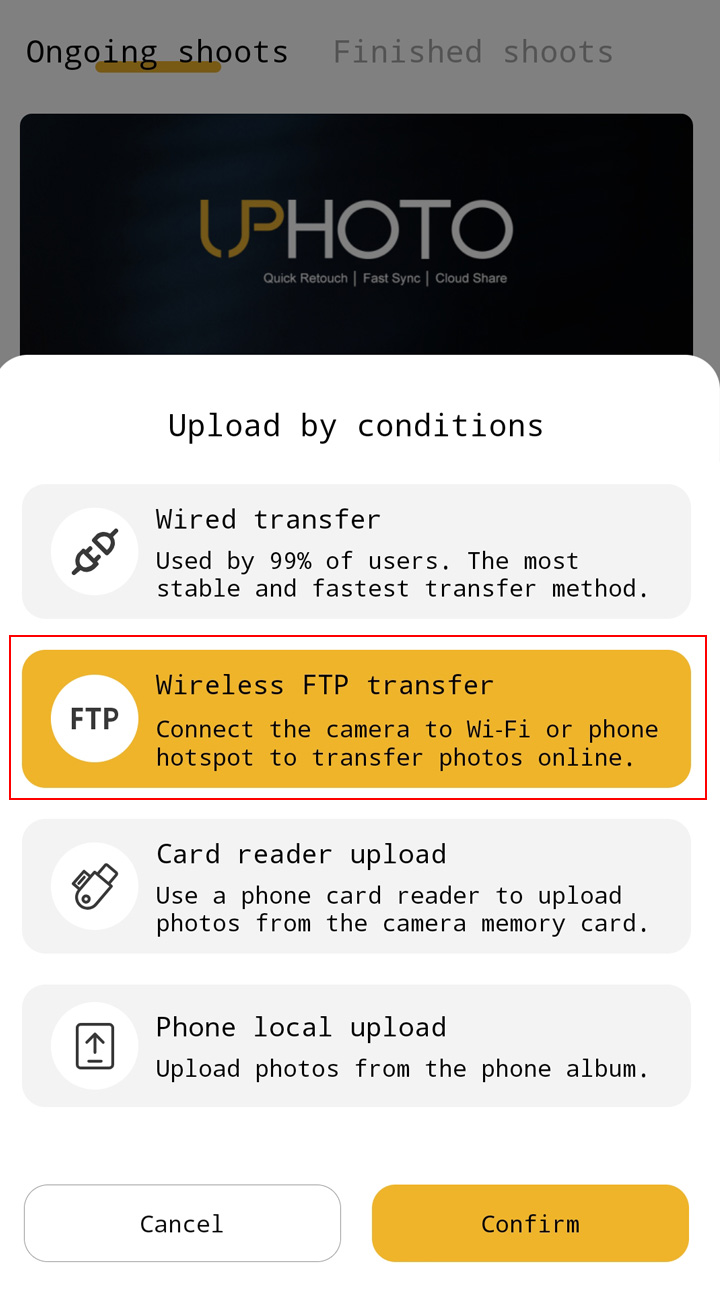
In the APP album list, select the album you want to shoot, click the "Upload Now" button, and select "Wireless FTP Transmission".
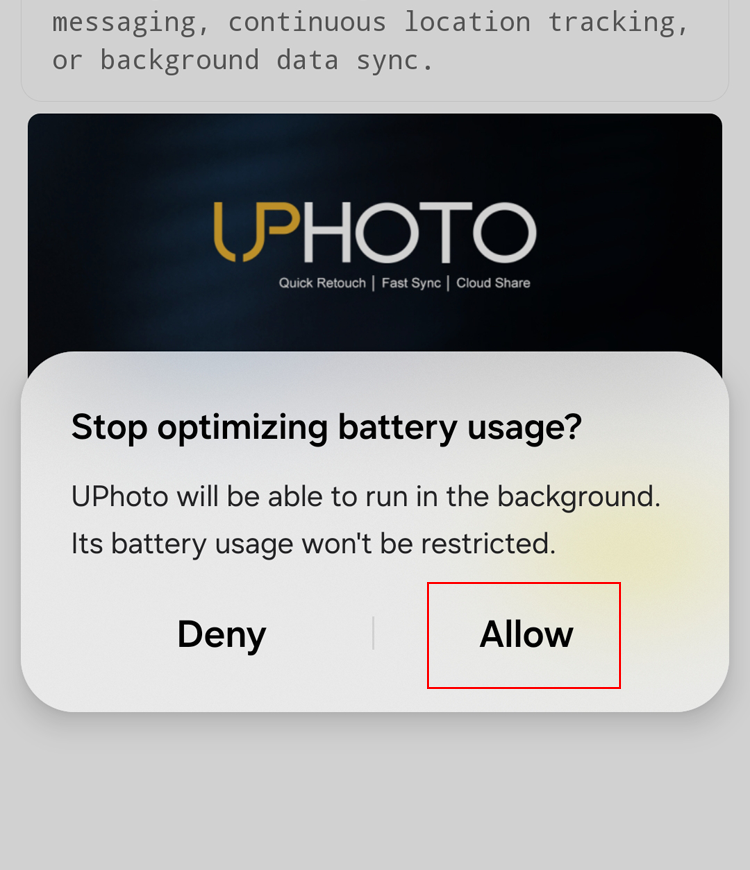
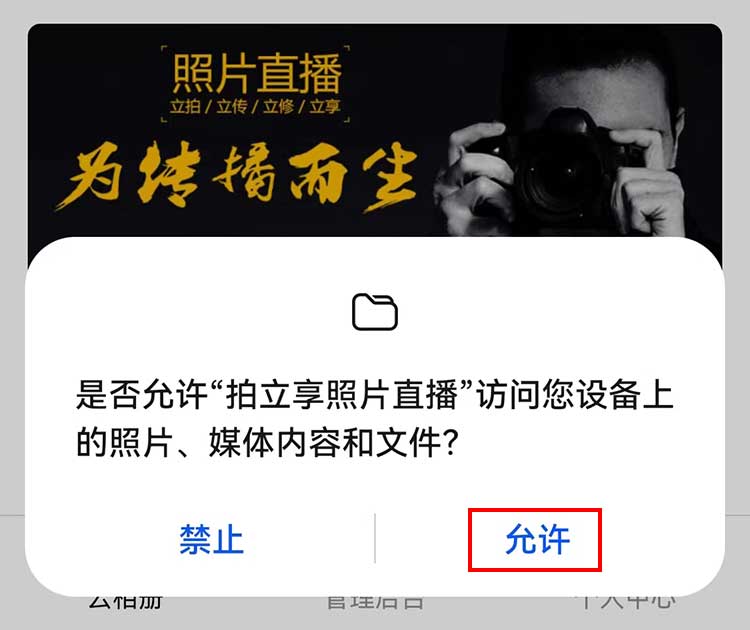
Note: If it is an Android phone, when using the "UPHOTO Live APP" for the first time, authorization requests for "Ignore battery optimization" and "Access photos and media content on your device" will pop up, please click "Allow". As shown below:
After selecting the photo upload group, you will enter the "Shoot and Upload" interface, which will display "FTP Service Information" by default. You can also manually click the "Disconnected" area in the upper left corner or the "Upload Settings" button in the upper right corner to display the FTP service information (this information will be used in subsequent camera settings). As shown below:
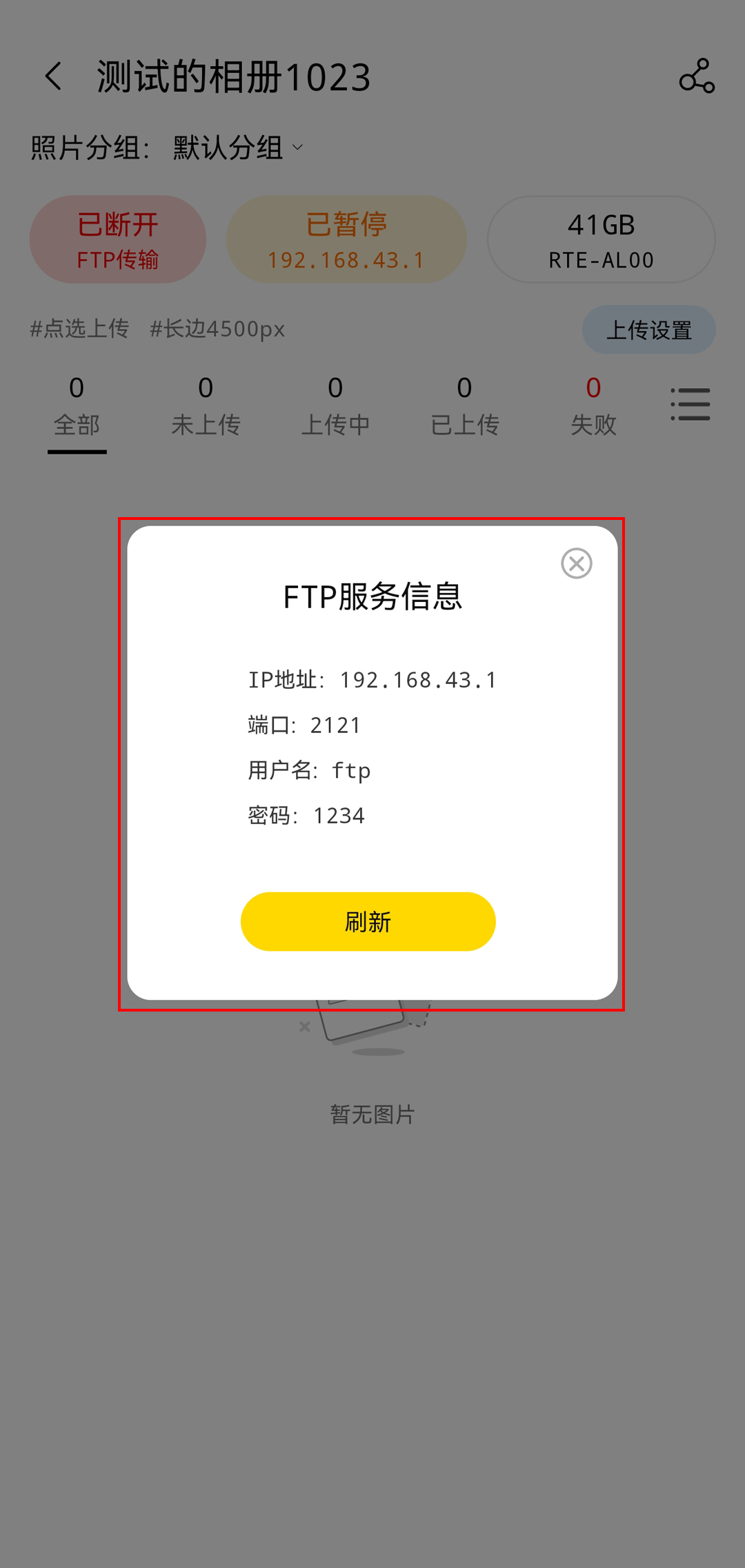
Note: If the "IP Address" is not displayed or shows "0.0.0.0", it means the "IP Address" failed to be obtained. You can first check whether the "Phone WIFI" is turned off, or whether the "Personal Hotspot" is turned on. After confirming that there is no error, click the "Refresh" button to refresh again.
III. Camera Settings
Set the camera power to the maximum time to keep the camera always on. As shown below:
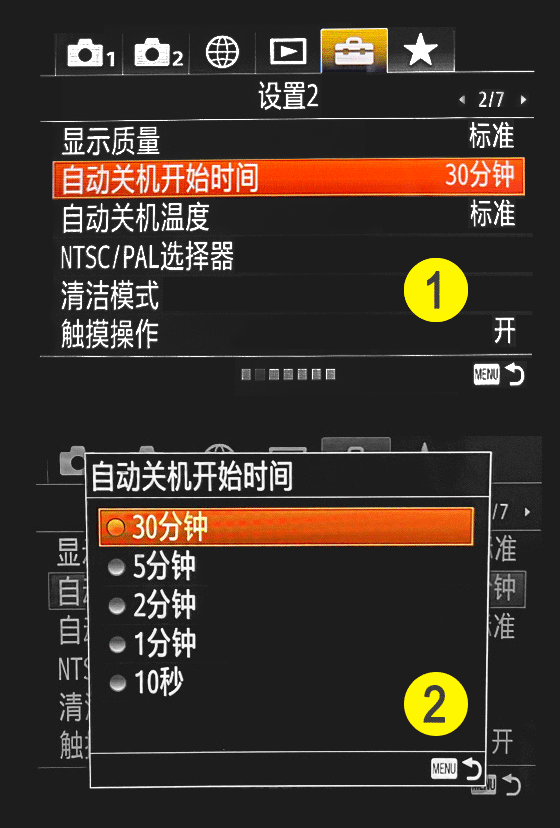
Set the photo format to JPEG or JPEG+RAW format.
Set the camera date and time to the current date and time.
Set "Wi-Fi Settings".
4.1 Find "Wi-Fi Settings" in "Network". As shown below:
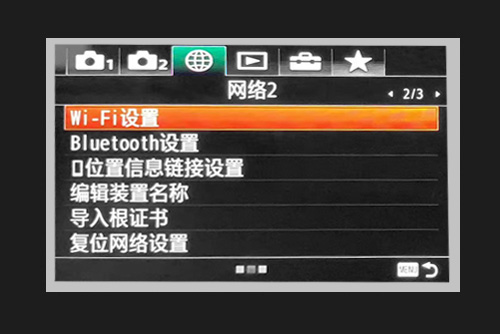
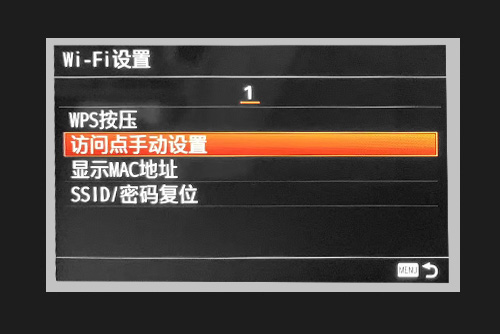
4.2 In the "Wi-Fi Settings" interface, select "Access Point(Manual)" and confirm. As shown below:
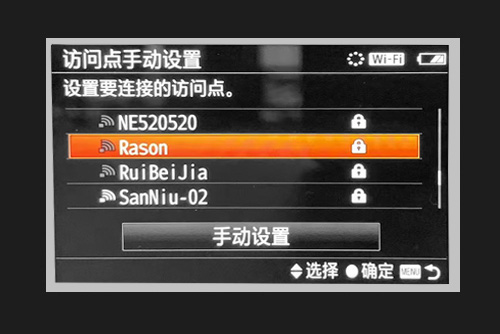
4.3 In the "Wi-Fi Settings" interface, select the previously enabled "Phone Personal Hotspot" and confirm, then enter the password of the "Phone Personal Hotspot" and confirm. As shown below:
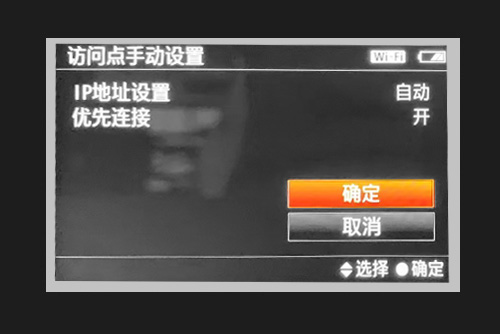
4.4 In the "Wi-Fi Settings" interface, set "IP Address Setting" to "Auto", set "Priority Connection" to "On", and then confirm. As shown below:
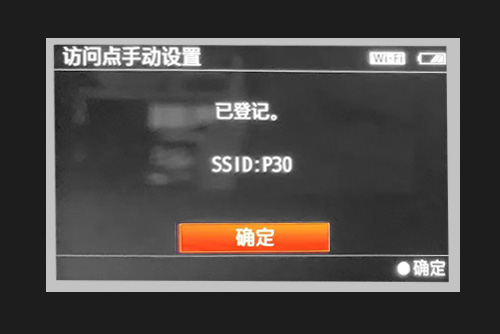
4.5 In the "Wi-Fi Settings" interface, if it shows "Registered", it means it is connected to the wireless WIFI. As shown below:
Set "FTP Transfer Func.".
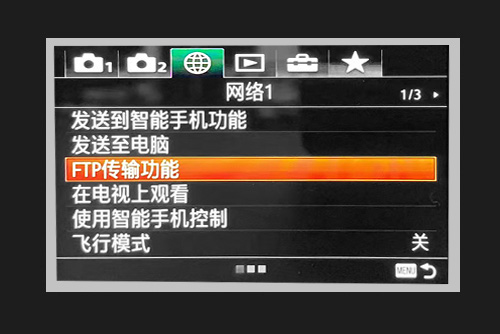
5.1 Find "FTP Transfer Func." in "Network". As shown below:
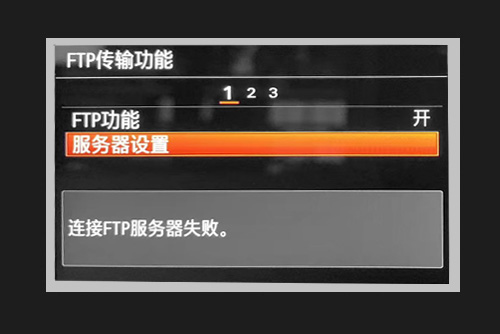
5.2 In the "FTP Transfer Func." interface, set "FTP Function" to "On", select "Server Setting" and enter. As shown below:
5.3 In the "Server Setting" interface, select an unused server setting and enter. As shown below:
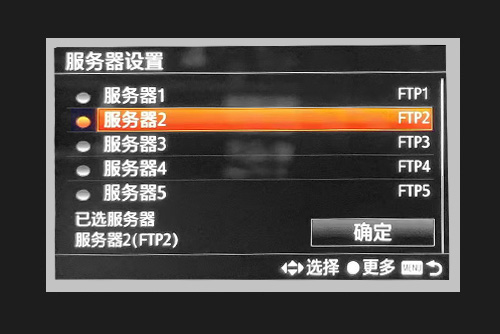
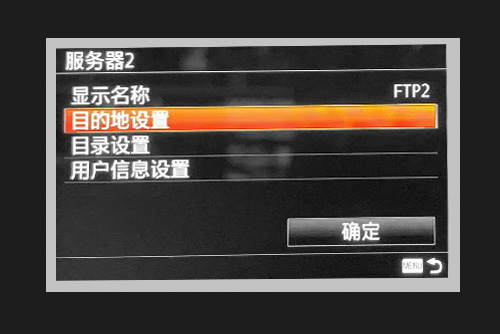
5.4 In the "Server" interface, set the "Display Name" to a name that is easy for you to remember, and then select "Destination Settings" and confirm. As shown below:
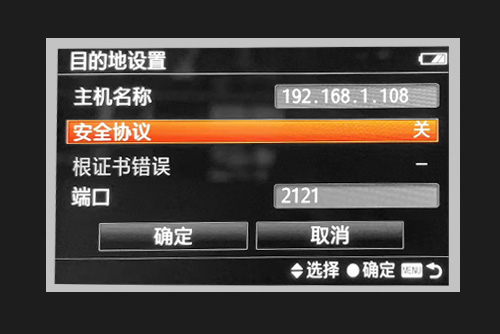
5.5 In the "Destination Settings" interface, set the "Host Name" and "Port" to the "IP Address" and "Port" in the FTP information displayed in the UPHOTO APP respectively, set "Secure Protocol" to "Off", and then confirm. As shown below:
5.6 In the returned "Server" interface, select "User Info Setting" and confirm. As shown below:
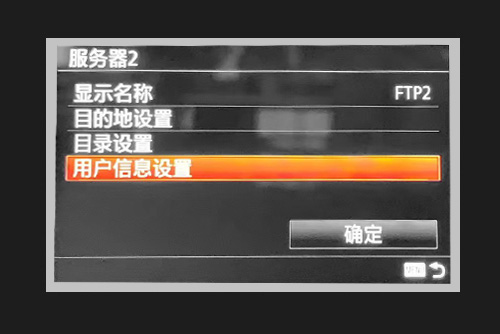
5.7 In the "User Info Setting" interface, set the "User" and "Password" to the "Username" and "Password" in the FTP information displayed in the UPHOTO APP respectively, and then confirm. As shown below:
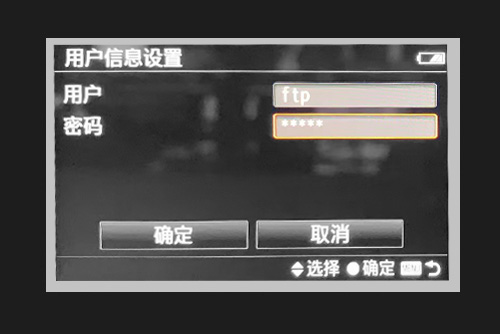
5.8 Confirm in the returned "Server" interface.
5.9 In the returned "Server Setting" interface, select the newly set server, and then confirm.
5.10 In the "FTP Transfer Func." interface, if it shows "Connected", it means the connection is successful. As shown below:
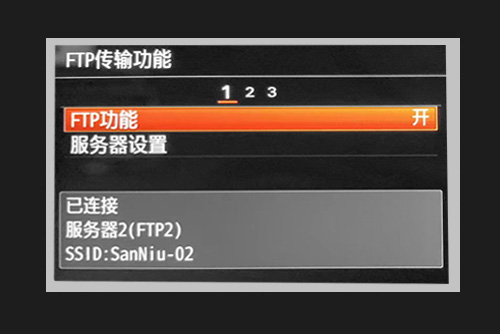
5.11 In the "FTP Transfer Func." interface, set "Auto Transfer during Shoot" to "On", set "RAW+J Transfer Target" to "JPEG Only", and set "FTP Power Save" to "Off". As shown below:
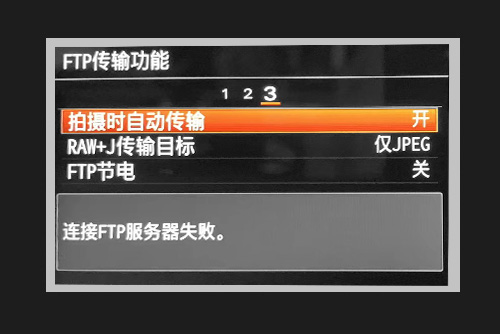
IV. Shoot and Upload
After the camera takes a photo, the photo will be automatically transferred to the photo list of the "UPHOTO Live APP".
Common Issues and Solutions
The camera cannot start the FTP transfer function.
- Set "Ctrl w/ Smartphone" to "Off".
- For some Sony cameras, "USB Connection" cannot be set to "MTP" and "PC Remote".
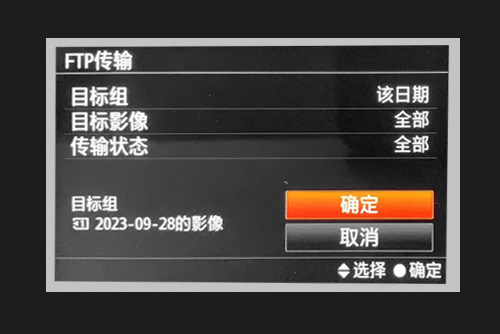
Manually select photos to upload via FTP (taking Sony a7M3 camera as an example).
2.1 Find "FTP Transfer" in "FTP Transfer Func.". As shown below:
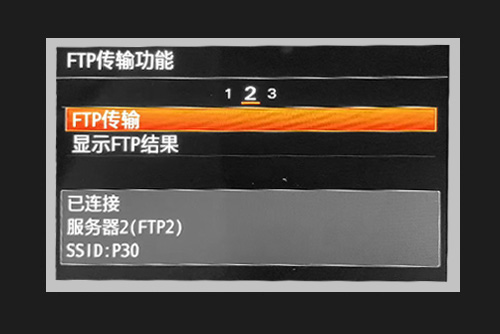
2.2 In the "FTP Transfer" interface, set the conditions for photos to be uploaded, and then confirm. As shown below:
The camera is connected successfully, but the APP cannot recognize the photos in the camera.
- Check if the camera's photo format is set to JPEG or JPEG+RAW format.
- Format the memory card, take a new photo and try again.