

[Memory Card Reader] Android Phone Connection
Connect your Android phone and card reader via an OTG adapter to quickly transfer photos from your memory card to the UPHOTO cloud.
Connection Steps
Open the "UPHOTO Live APP" and log in successfully.
In the APP album list, select the album you want to shoot, click the "Upload Now" button and select "Card Reader Upload". Note: When using the "UPHOTO Live APP" for the first time, authorization requests for "Ignore battery optimization" and "Access photos and media content on your device" will pop up, please click "Allow". As shown below:
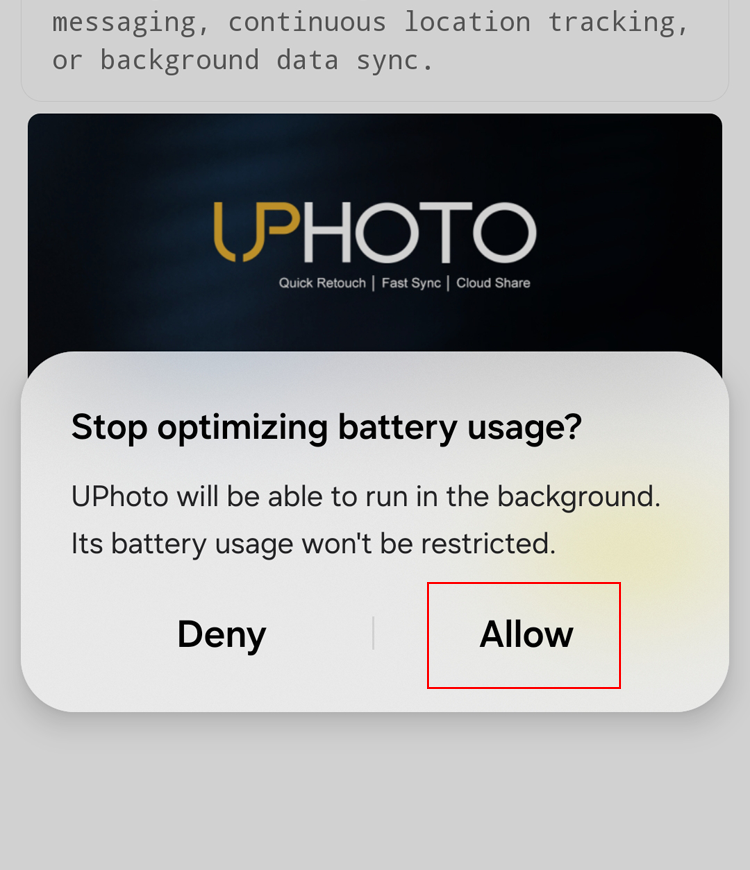
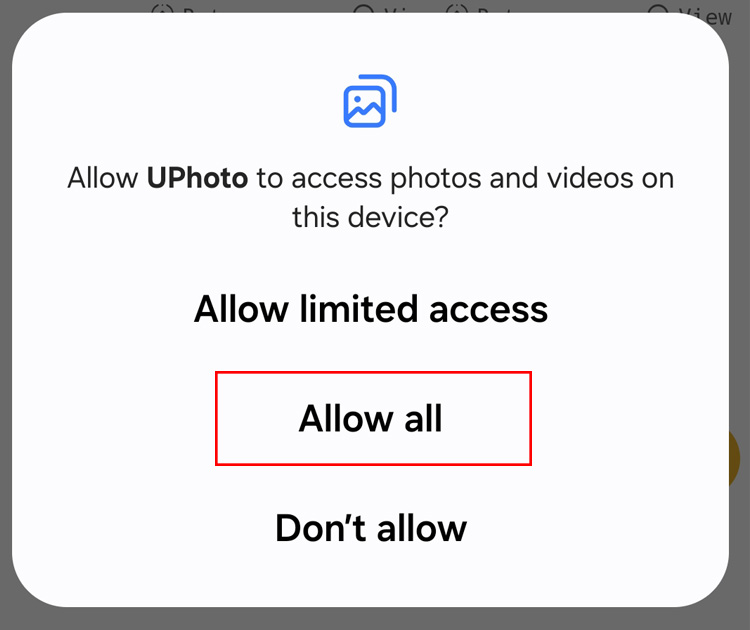
After selecting the photo upload group, enter the "Shoot and Upload" interface.
Insert the memory card into the card reader, and connect the card reader to the phone.
Click the "Manual Authorization" button in the APP interface. As shown below:
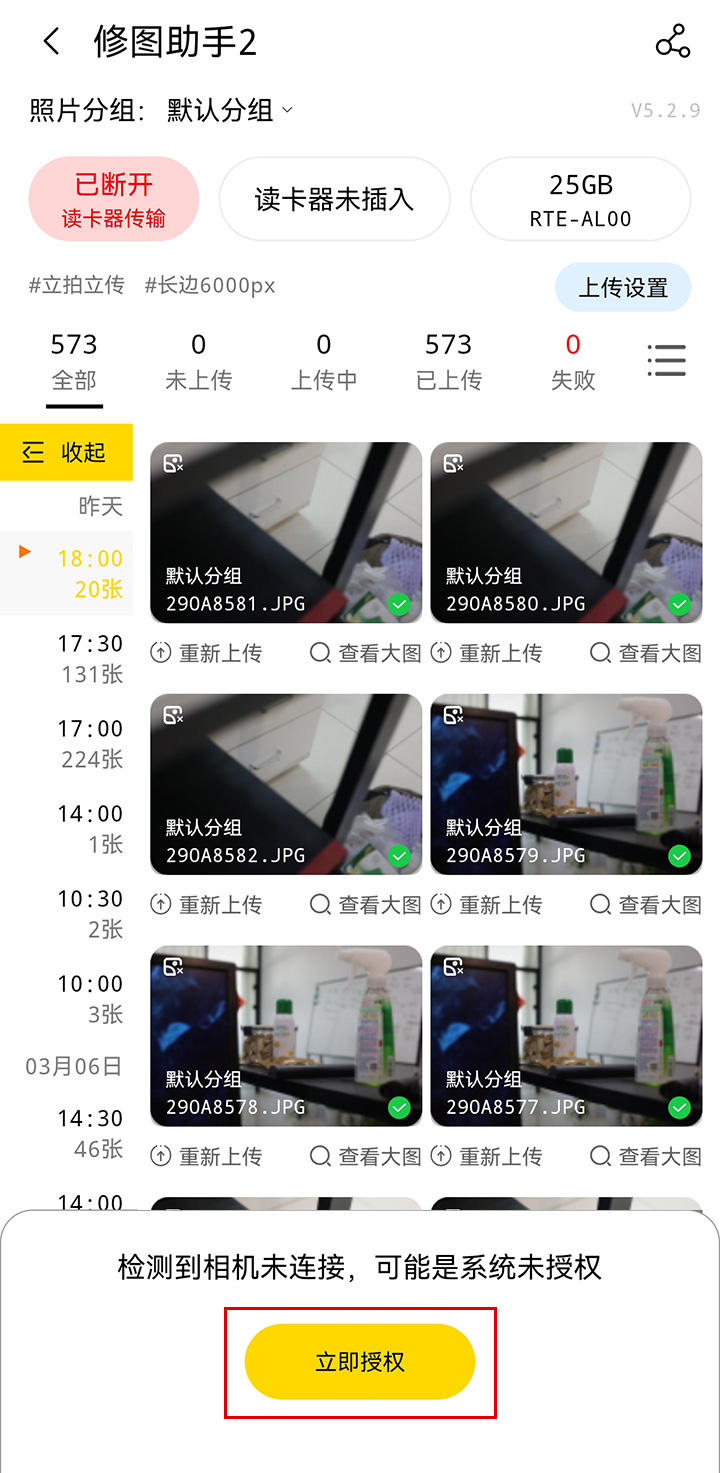
After clicking the "Manual Authorization" button, an authorization interface will pop up, click the "Allow access to xxxx" button. As shown below: Note: The text on the "Allow access" button in the authorization interface popping up from different phone brands will be different.
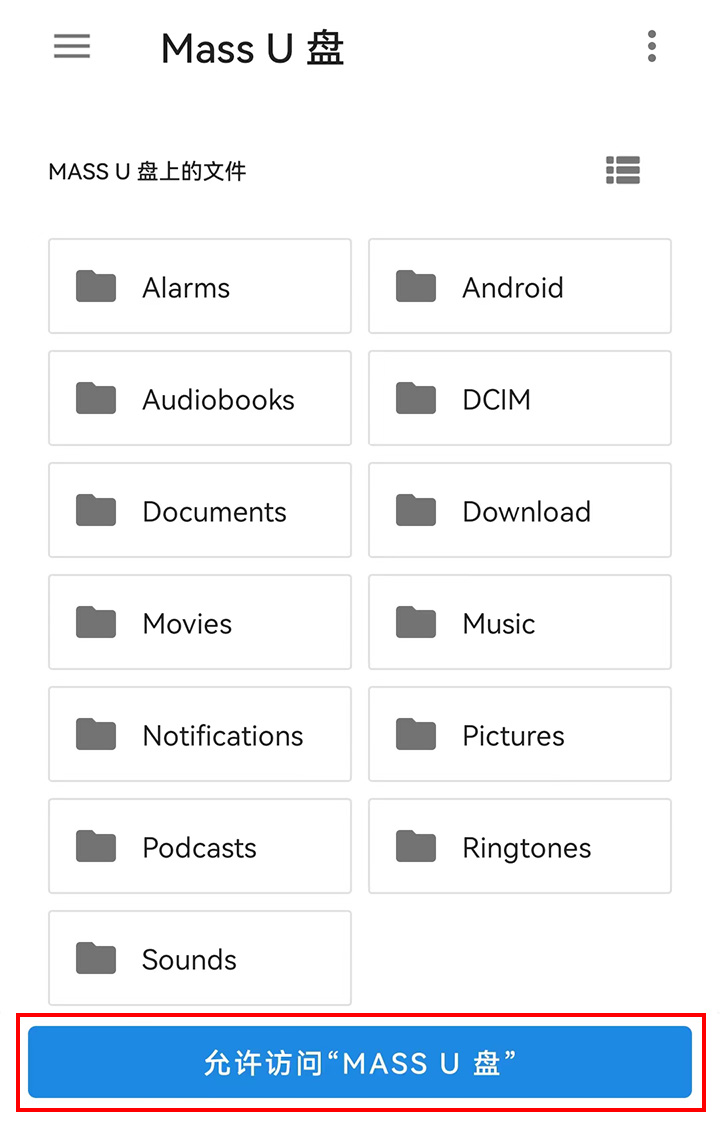
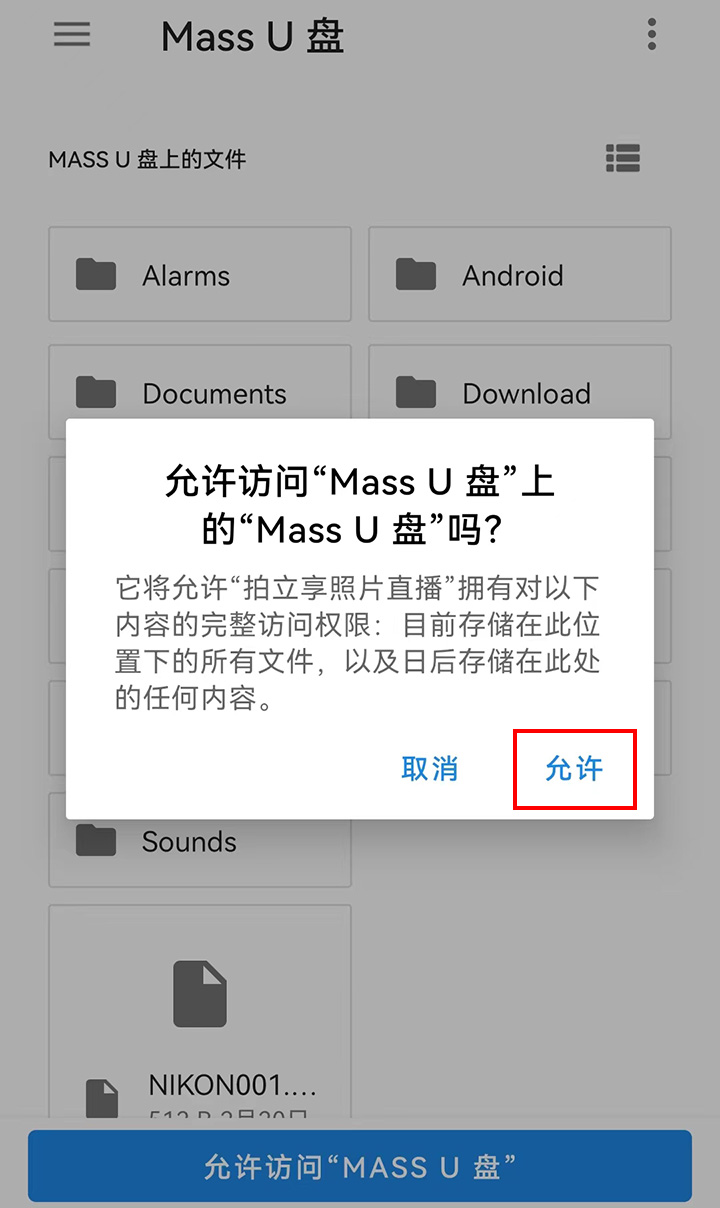
In the pop-up confirmation dialog box, click the "Allow" button. As shown below:
Common Issues and Solutions
Still cannot connect to the card reader after multiple attempts:
- Check if the adapter connecting the card reader and the phone has the OTG function.
Connected successfully, but the APP cannot recognize the photos in the memory card:
- Check if the memory card contains JPEG format photos.
- Format the memory card, take a new photo and try again.