

[Memory Card Reader] Apple Phone Connection
Use an Apple phone and card reader to quickly transfer photos from your memory card to the UPHOTO cloud.
Connection Steps
Open the "UPHOTO Live APP" and log in successfully.
In the APP album list, select the album you want to shoot, click the "Upload Now" button and select "Card Reader Upload".
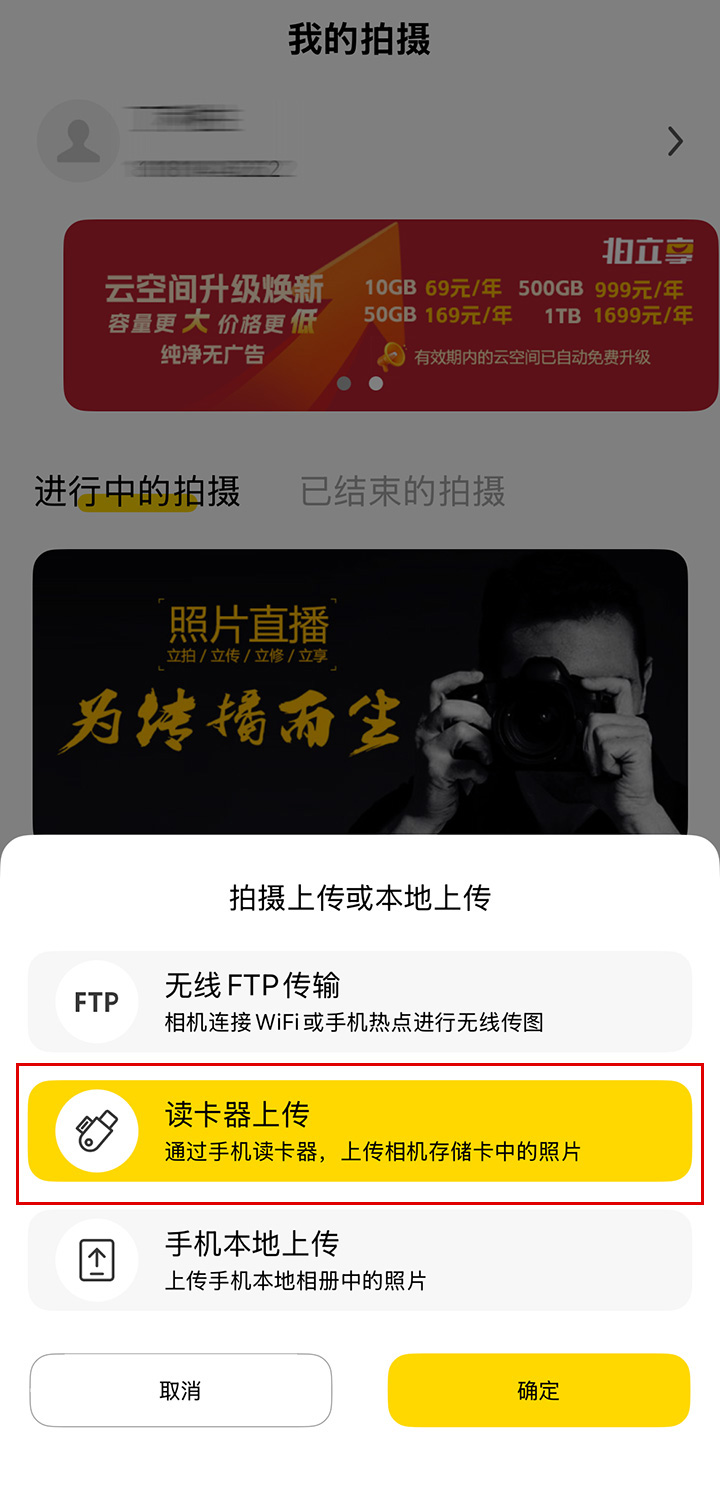
Select the card reader path to read photos. Note: Due to system restrictions, when entering the card reader page for the first time, you need to manually select the card reader path, and the previously selected path will be remembered later.
Note: At this time, the system's file picker will usually pop up, click "On My iPhone" to return to the previous level.
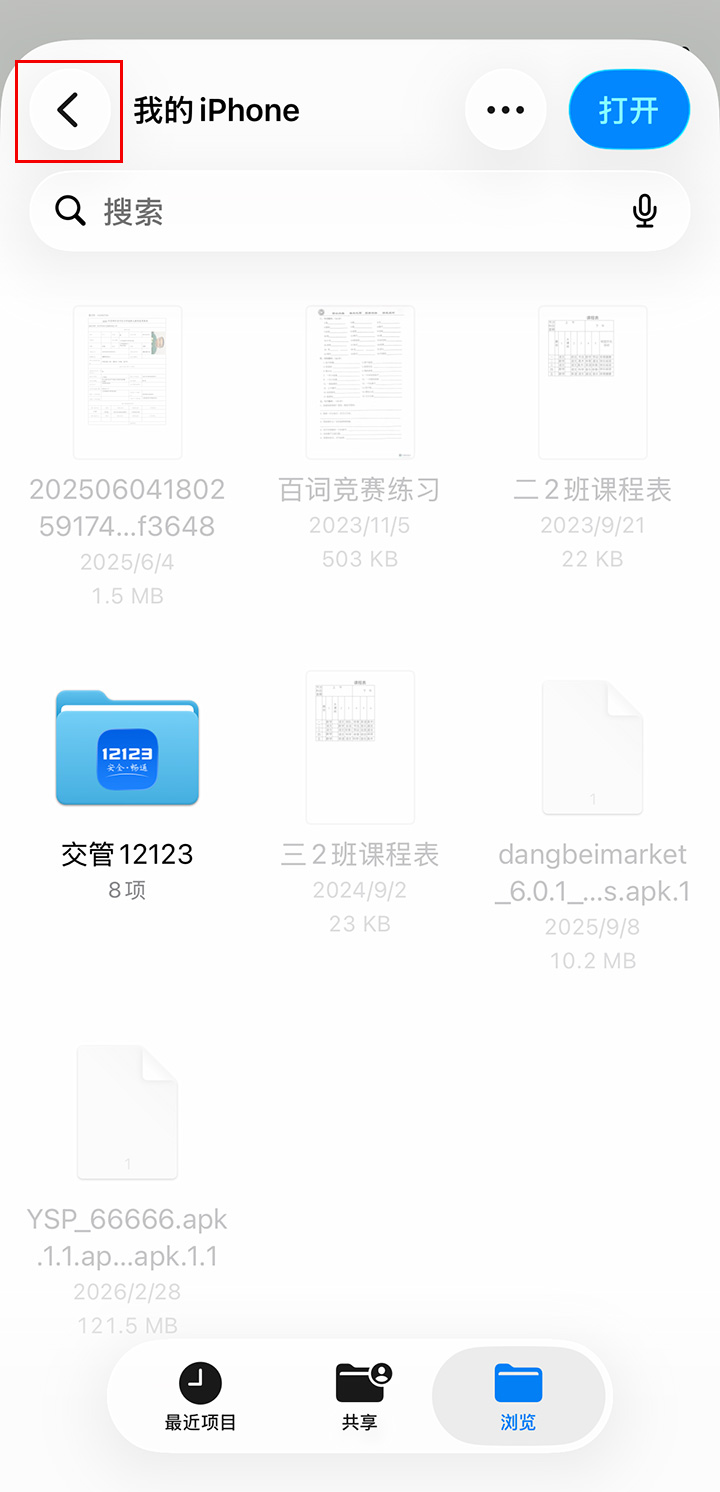
Keep going until you reach the location shown in the picture below, at which point the mounted card reader is already displayed in the list.
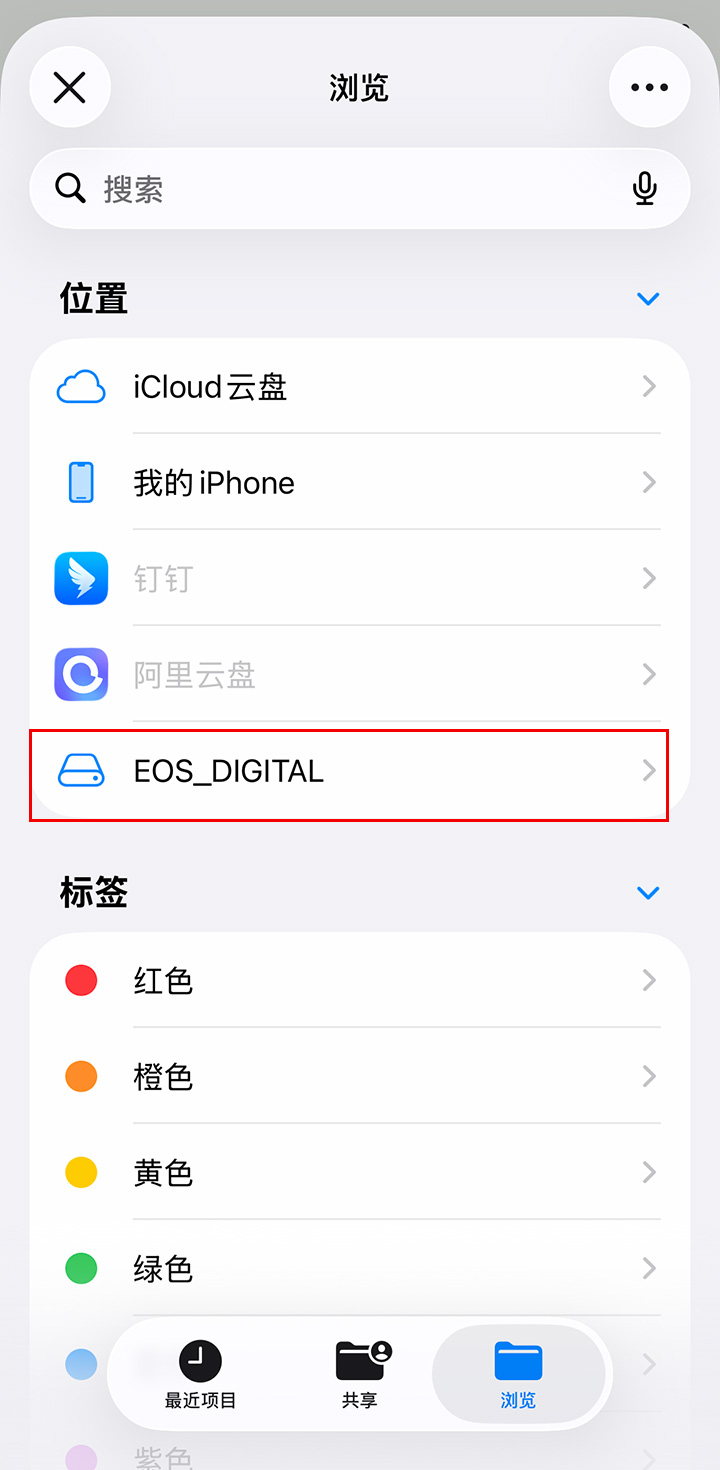
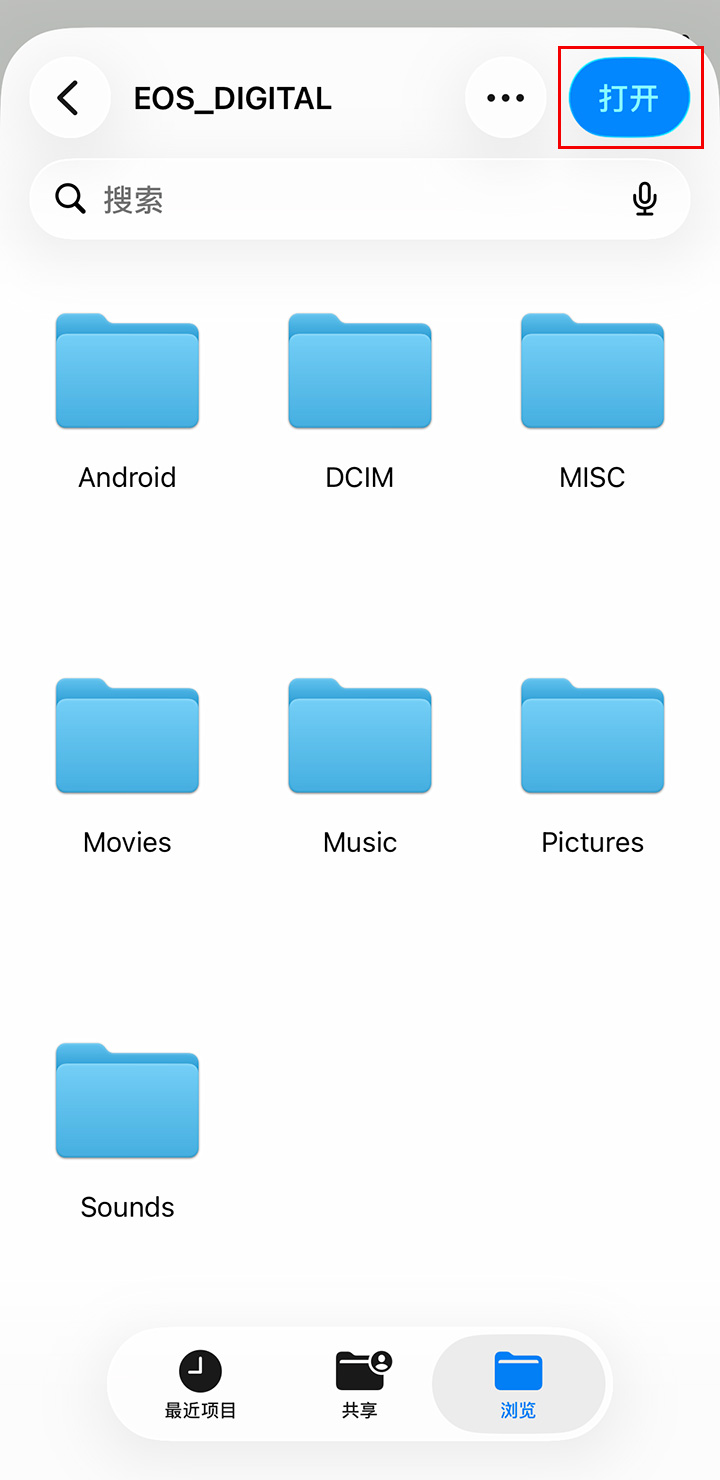
Select your card reader to enter the card reader page, and after entering, directly click "Open".
The APP will automatically scan the files in the card reader and finally display them on the page.
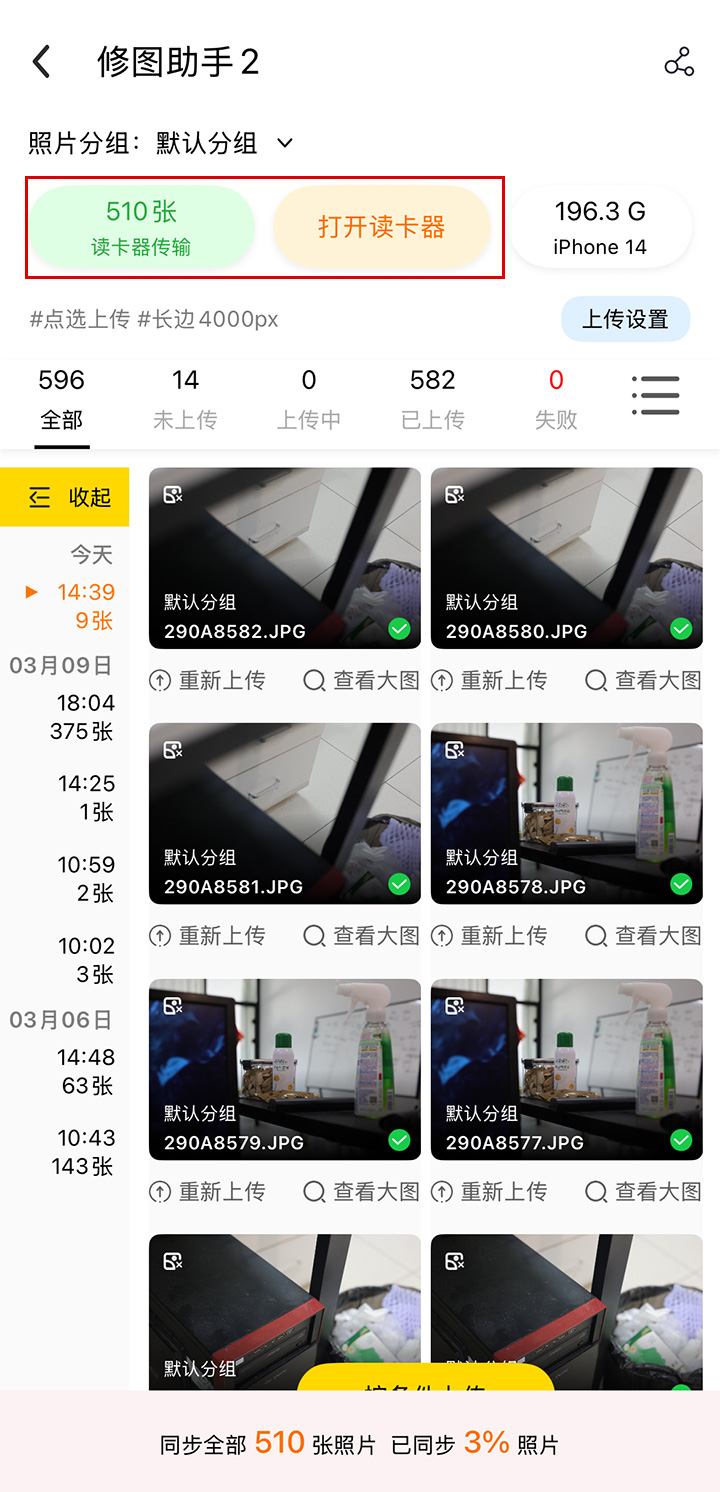
If the card reader is unplugged midway, after reconnecting, if the memory card is not switched, you can directly click the 'Open Card Reader' button to read the photos again without selecting the path again. If the memory card is switched, you need to reselect the card reader path, see step 3 for details.
Common Problem
- Card reader upload only supports JPG format images;